
 English
  Tiếng Việt
In today's era of globalization, online conferences are becoming increasingly popular, especially in international work and study environments. One of the major challenges when participating in online conferences is language differences. To solve this problem, connecting a translation device to a phone or laptop becomes an effective solution, helping to optimize the communication experience and bring convenience to participants. In this article, we will learn how to connect a translation device to a phone and laptop to optimize online conferences.
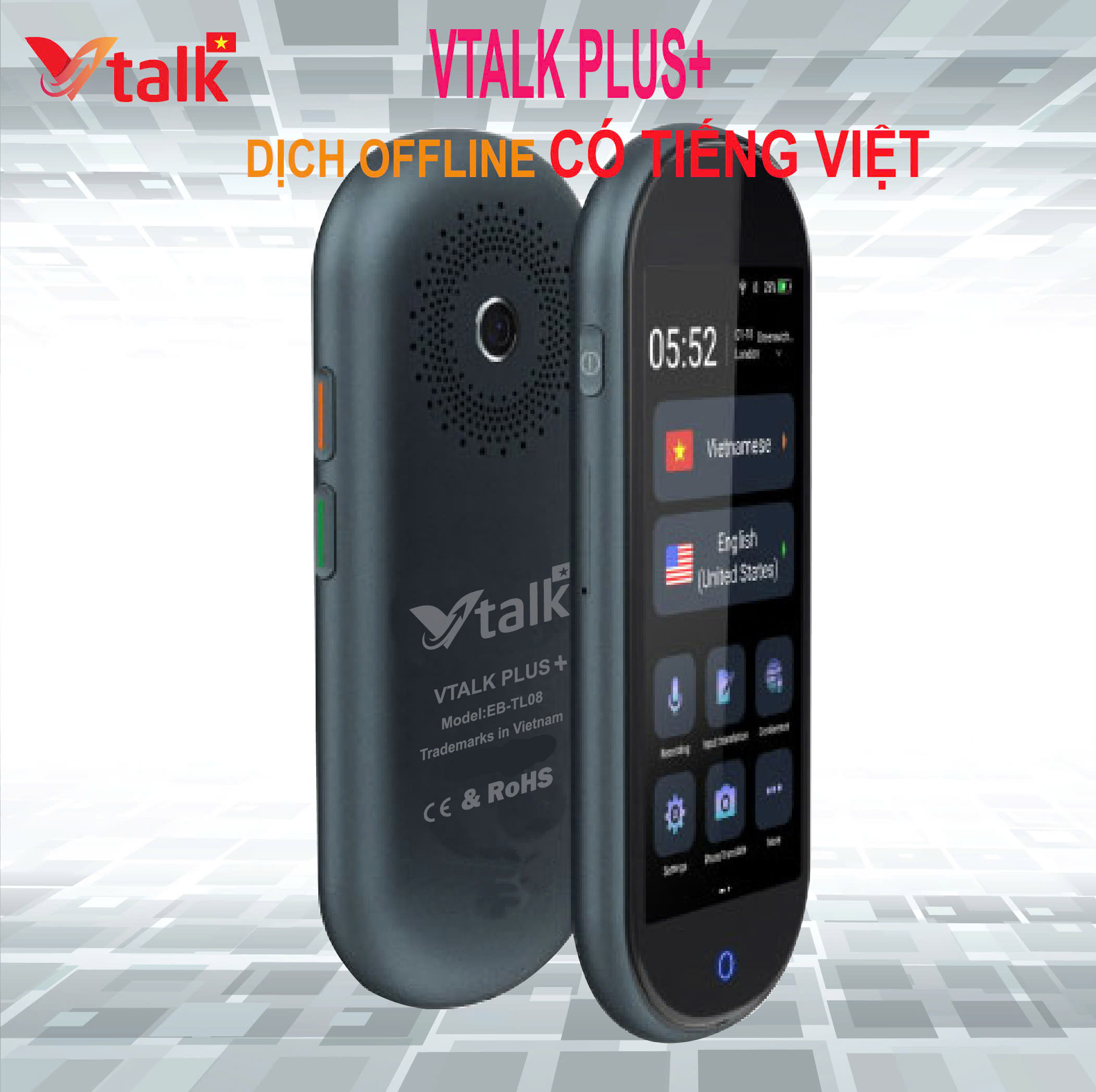
VTALK PLUS+ the top choice for important meetings
1. Why Connect a Translation Device to a Phone or Laptop?
Translation devices offer great convenience by helping users overcome language barriers in communication. However, in online conferences, connecting a translation device to devices like phones or laptops enhances translation efficiency and creates flexibility in information exchange. Here are the reasons why you should connect a translation device to a phone or laptop during online conferences:
- Enhanced Translation Accuracy: A translation device connected to a phone or laptop can utilize professional translation applications, helping to improve the accuracy of the translation.
- Integrated Recording Feature: When connected to these devices, you can easily record conferences to refer back to the content later or check the accuracy of the translation.
- Increased Flexibility and Convenience: Connecting to a phone and laptop allows you to use the translation device flexibly in conferences, enabling translation from multiple languages without having to change devices.
2. How to Connect a Translation Device to a Phone or Laptop
To connect a translation device to a phone or laptop, follow these simple steps. Note that each translation device will have different user instructions, but most can connect via Bluetooth, USB cable, or Wi-Fi.
Connect via Bluetooth
This is the most common and fastest method when connecting a translation device to a phone or laptop:
-
Turn on Bluetooth on your phone or laptop: First, you need to turn on Bluetooth on your device. Ensure that Bluetooth is activated and your device can discover nearby devices.
-
Turn on the translation device: Turn on your translation device and activate Bluetooth pairing mode. The translation device will start searching for nearby devices to connect.
-
Connect the translation device to your device: Once the translation device has found your phone or laptop, simply select it from the list and tap “Connect”.
-
Check Connection: After a successful connection, your translator and device will automatically synchronize, allowing you to start using the translator in online conferences.
Connect Via USB Cable
If your translator supports connection via USB cable, this is also a quick and stable way to connect:
-
Plug the USB cable into the translator: Simply plug the USB end of the cable into the translator's USB port.
-
Plug the other end into your phone or laptop: After plugging the USB end into the translator, plug the other end into the USB port on your phone or laptop.
-
Check Connection: Your translator and device will automatically detect and connect. You can check the connection through the app or translation support software.
Connect Via Wi-Fi Network
Some translators can connect via Wi-Fi, allowing you to use online translation applications quickly and accurately:
-
Connect the translator to the Wi-Fi network: Ensure that your translator is connected to a stable Wi-Fi network.
-
Open the translation app on your phone or laptop: Download and open the translation app you want to use on your device.
-
Connect the translator to the app: Through the app's interface, choose to connect with the translator via Wi-Fi. Once connected successfully, you can start using the translator in online conferences.
3. Optimizing Online Conferences With a Translator Device
Once you have connected your translator device to your phone or laptop, you can optimize online conferences more effectively. Below are some tips to help you make the most of your translator device in online meetings:
Use Live Translation Mode
Many modern translator devices have a live translation feature, making it easy to switch languages while communicating. This is especially useful in international meetings where members come from different countries and use different languages. You just need to speak clearly, and the translator device will instantly translate and convey accurate information to the participants.
Use Integrated Translation Applications
Some translator devices integrate with translation applications on your phone or laptop. These applications can translate text or speech quickly and accurately. You can use apps like Google Translate, iTranslate, or Microsoft Translator to enhance translation capabilities in your meeting.
Check and Adjust When Necessary
In online conferences, there may be times when the translator device is not entirely accurate. To ensure the quality of the meeting, you should review the translation and make adjustments if necessary. If the translator device has difficulty recognizing speech, you can try speaking slower and clearer.
4. Notes When Using a Translator Device in Online Conferences
- Choose the right device: Ensure that you choose a translator device that can easily connect to your phone or laptop.
- Ensure a stable connection: Make sure your Bluetooth, USB, or Wi-Fi connection is stable to avoid interruptions during the translation process.
- Use a quiet environment: A translator device works most effectively in a quiet environment, free from surrounding noise.
5. Conclusion
Connecting a translator device to your phone or laptop not only helps optimize online conferences but also brings convenience and efficiency to communication. By following simple steps and noting important points, you will be able to use the translator device optimally, making international meetings easier and smoother. Apply these tips to improve your communication skills in your online conferences!